



How to Advertise on ChatGPT? A Step-by-Step Review of OpenAI Ads Manager
I started this review in early September, using one of our overseas accounts, because Türkiye wasn't yet on OpenAI's advertiser list. Before I could finish the article, the list changed. As of September 16, businesses registered in Türkiye can now access Ads Manager too.
Here's the short version: the panel won't feel unfamiliar when you open it. Campaigns, ad groups, budgets, pixels all work the way you'd expect. The real difference is in targeting. You don't pick keywords or interests; instead, you describe in plain text which conversations you want your ad to appear in. Below, I've written down every step I tried, in order, from setting up a campaign to the pixel and Conversions API, and noted along the way where it differs from Google and Meta.
Once access opened up, we launched a campaign on our Türkiye account targeting only Türkiye. The campaign is live and has been getting impressions and clicks since day one. So Türkiye is now a market where you can both open an ad account and target it. You can follow the current country list on OpenAI's Ads Manager Availability page.
First Look at the Panel
After entering your business details, the panel takes you straight into creating your first campaign. The hierarchy is familiar: Campaign, Ad Group, Ad — the same structure we've used in Google and Meta for years. That's why the learning curve is short; the real novelty is elsewhere, and I'll get to that shortly.
Still, I'd recommend reviewing your account settings once before jumping into a campaign. On my first try I dove straight into the campaign and went back to settings afterward — don't make that mistake.
Account Settings and User Management
The settings page has fields for account name, the ad account's country, currency, time zone, and logo. The logo is pulled automatically from your site's favicon. In our case, it found the Zeo logo on its own, but not at the quality I wanted. You can change it with the pencil icon next to it — I'd recommend uploading your own image:
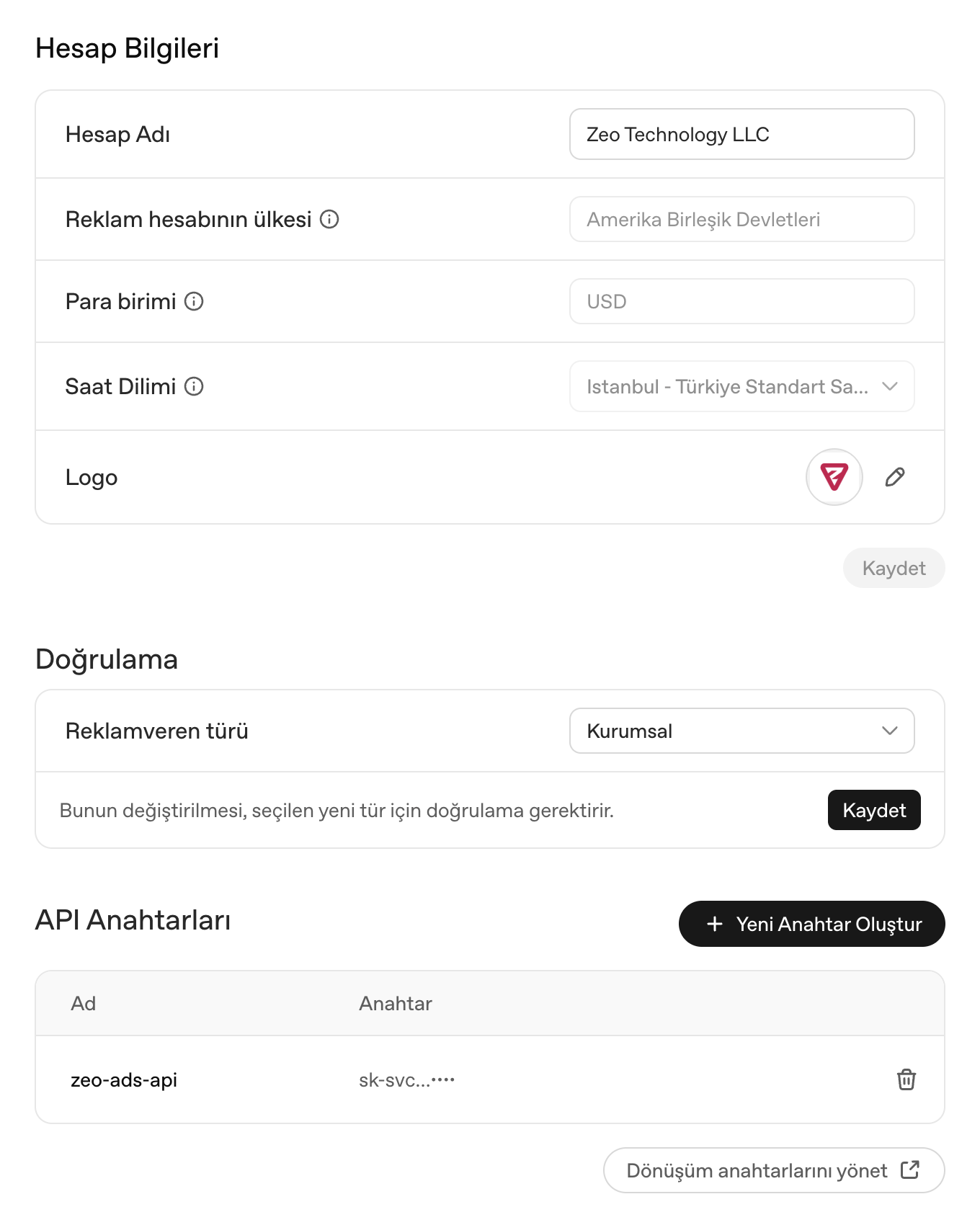 OpenAI Ads Manager general account settings and API management
In the verification section, you choose the advertiser type: Business or Individual. One detail to watch out for here: changing the type later requires re-verification. Make the right choice from the start.
User management has Admin and Member roles. I tried inviting a teammate directly as Admin and got a "User could not be invited" error. When I invited them as a Member instead, and upgraded their role to Admin after they accepted the invite, it worked without issues. In other words, role upgrades can only be done after the invite is accepted; follow this order when adding your team.
API Keys
There's also an API key creation area under settings. When you click "Create New Key," it asks for a name and shows the key only once:
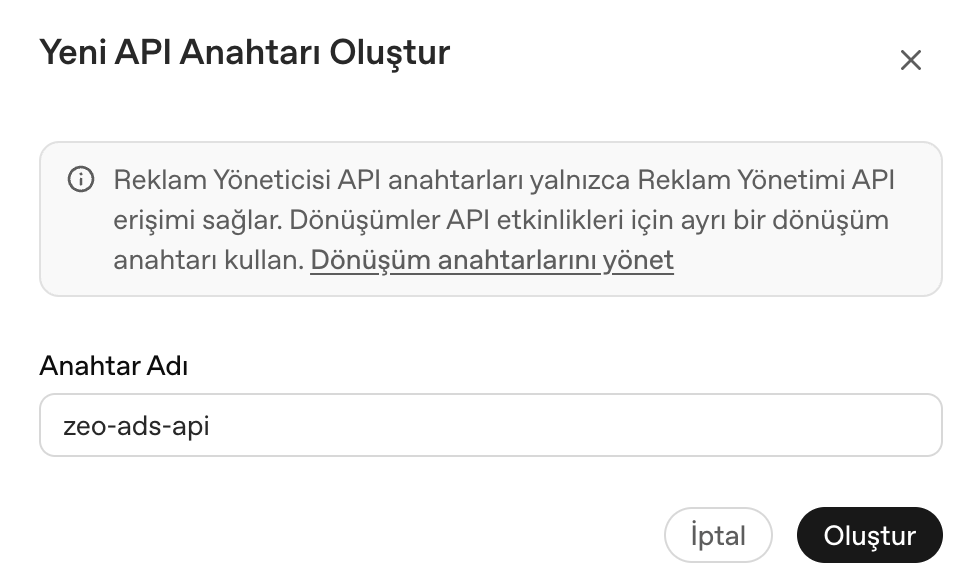 OpenAI Ads Manager creating a new API key
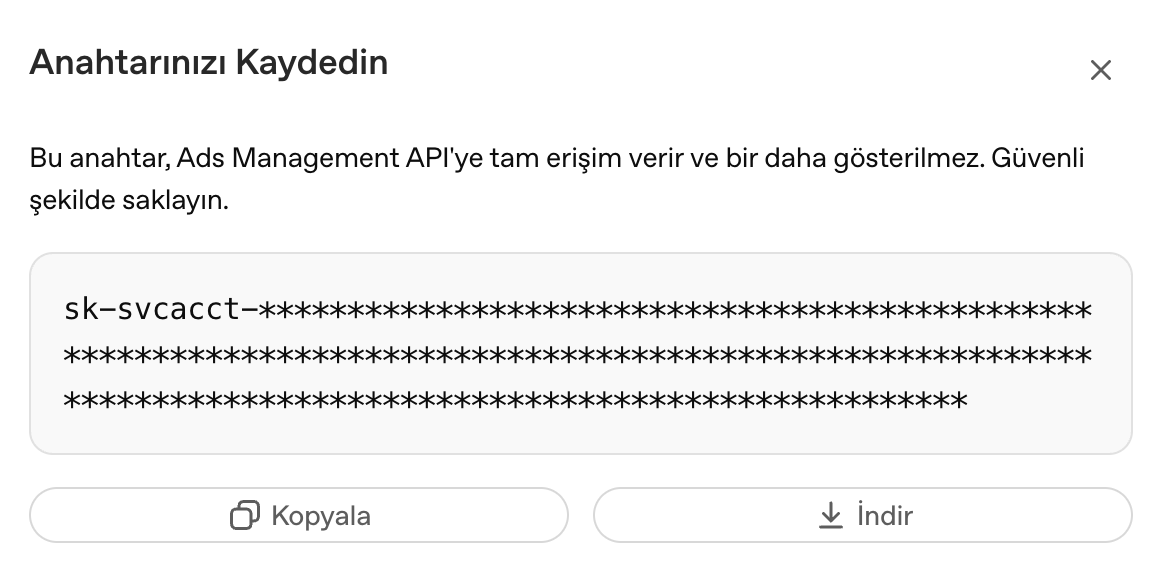 OpenAI Ads Manager screen for saving the API key
The key starts with sk-svcacct-, meaning it's a service account key. Pay attention to the warning in the dialog: this key only grants access to the Ads Management API. The Conversions API needs a separate conversion key, managed on a different page via the "Manage conversion keys" link. OpenAI's developer docs confirm this separation too, share this with your team from the start so the two keys don't get mixed up.
Creating a Campaign in ChatGPT
Campaign Type: Standard or Product Feed?
After entering the campaign name, the first choice is campaign type. There are two options here:
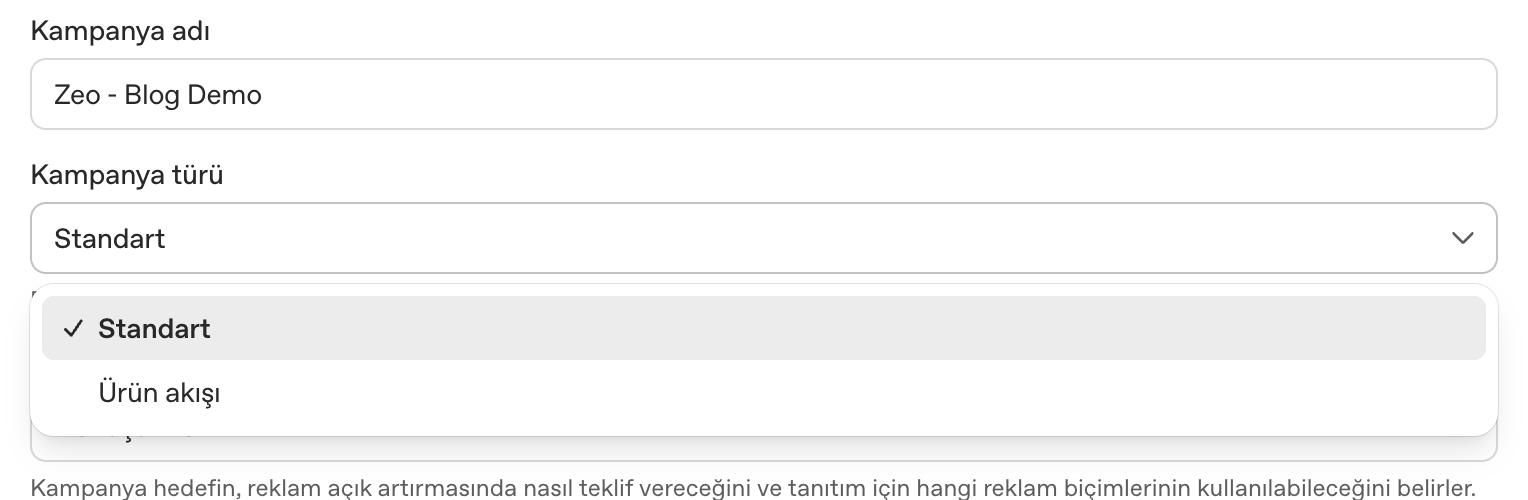 OpenAI Ads campaign type selection: Standard and Product Feed
In a Standard campaign, you enter the headline, description, and image yourself - that's the flow I describe throughout this piece. In a Product Feed campaign, you select a feed, and ads are generated from the products in that feed. Think of it as the equivalent of Google Shopping or Meta Catalog ads. You need to create the feed beforehand from the Tools menu, which I'll cover separately below.
Objectives and the New Recommended Model: oCPM
The objective section has three options: Reach, Clicks, and Conversions. Reach is for brand awareness, Clicks for website traffic, and Conversions for events you define through the pixel.
When I first reviewed this, the only billing option for the conversion objective was cost-per-click. On September 16, a second option billed by impressions (oCPM) was added; the system now factors in not just post-click conversions but also users who saw the ad and converted later. Now, when setting up a conversion campaign, you choose between oCPC and oCPM, and OpenAI recommends oCPM for performance. I haven't tested it yet - I'm relaying this from the announcement - but I'm planning to split the budget in half on my first campaign to compare the two.
ChatGPT Ads in Türkiye: Who Can Advertise?
When I first reviewed this, the countries I could target were markets like the US, UK, the European Economic Area and Switzerland, the UAE, Kuwait, Australia, and Cyprus. Out of curiosity I checked Russia — not there; Ukraine and Israel weren't on the list that day either. With the MENA expansion on September 16, Türkiye, Saudi Arabia, Qatar, Egypt, Morocco, Jordan, and Bahrain were added too. Our campaign targeting Türkiye is live right now. The list of countries you can target is whatever shows up in the location field when you create a campaign.
Selection works with checkboxes, and next to the "Select all" option there's also an exclusion field. When I first saw it, I wondered why anyone would need it — probably for people who want to select all countries and exclude just a few. For my own tests, I went with the United Arab Emirates.
Platform Targeting
When we first reviewed this, platform selection had three options: iOS app, Android app, and Web:
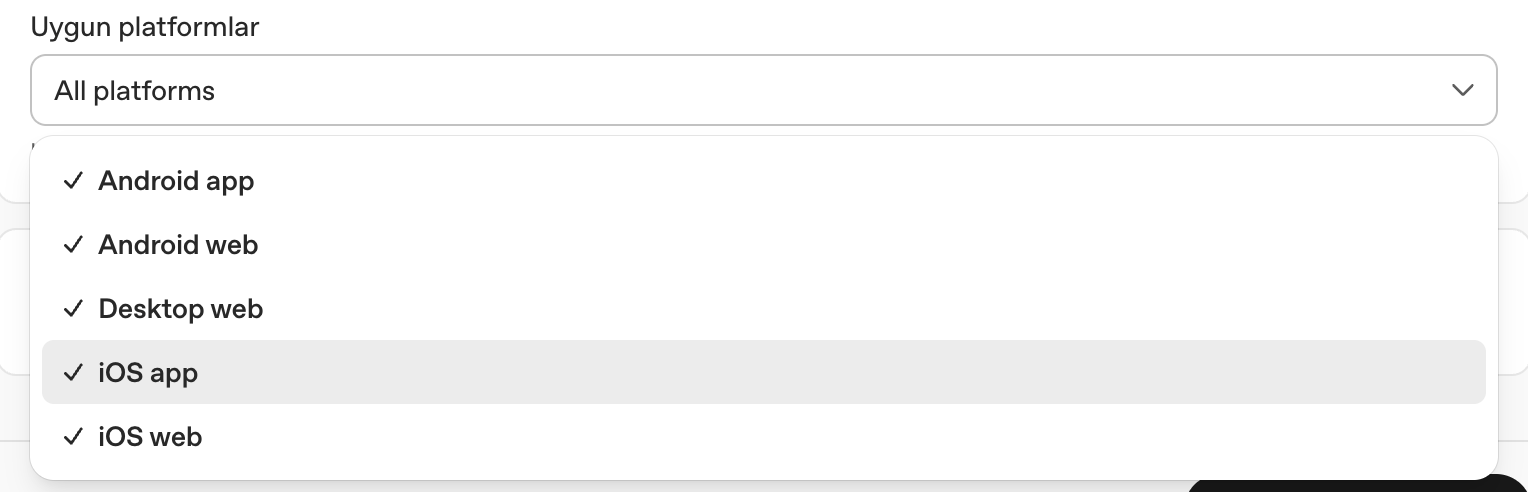
OpenAI Ads platform selection: Android, iOS, and desktop breakdowns
With the latest update, this has been split into five: Android app, Android web, desktop web, iOS app, and iOS web can now each be targeted separately, and reports can be pulled with this same five-way breakdown. Good news for anyone who wants to separate mobile web traffic from app traffic.
Budget: How Much Does ChatGPT Advertising Cost?
There are daily budget and total budget options. Budget is set at the campaign level. For US dollars, the minimum daily budget is $25, and you can't go below that:
 OpenAI Ads minimum daily budget of $25 warning
In the screenshot, you can see the warning that appears when you enter $10, along with the cap calculation. The logic is the same as Google Ads: on a given day it can spend up to twice the daily budget, and the seven-day total doesn't exceed seven times the daily budget. Curious whether there was a floor, I tried lowering it - it stopped at $25. I also tried a different location; nothing changed. Minimum amounts are now defined per currency; values like 15 for euros or 70 for UAE dirhams are listed in OpenAI's campaign creation documentation.
The $25 baseline budget, combined with the recommended CPC range of $3 to $5 I'll mention below, makes me think this isn't built with small businesses that open a $5 campaign on Meta in mind. I could be wrong — we'll see once the first campaign results come in.
AI Text Customization
This is the most interesting campaign-level setting. When you turn on the toggle, AI automatically generates personalized and translated versions of your headlines and descriptions:

Pay attention to this line in the description: "These may be shown without your review or approval." The platform can change your text and publish it without you seeing it. We advertisers tend to be a bit wary of this kind of assistant feature, but since it's ultimately OpenAI's own model doing it, I figured it was worth trying - so I left it on. It's also a perfect fit if you want to enter a multilingual market with a single English text and let the platform handle translation. If you're in a brand-language-sensitive or regulated sector, you might want to turn it off.
Ad Group
Bidding Strategy
The ad group has two options: "Maximize results" and Manual CPC. I struggled a bit on the manual side. The panel wouldn't accept anything below $2; I entered 2.05, no luck; I entered 2.90, still no luck. Eventually I realized the problem was the comma. The Turkish interface doesn't accept a comma as a decimal separator - once I entered a whole number, it worked. There's no officially published floor, by the way; OpenAI's suggested starting range is $3 to $5.
CPC alone isn't enough for ranking; when there are multiple eligible ads, relevance and bid are evaluated together.
URL and UTM Parameters
You enter the default destination URL at the ad group level. Just below it there's a "Landing page query parameters" field where you can use dynamic values. The supported templates are: {campaign_id}, {ad_group_id}, {ad_id}, {ad_account_id}, and {oppref}.
The description says it "adds missing query parameters," meaning if your URL already has UTMs, it won't overwrite them, it only fills in the missing ones. Worth knowing so you don't run into conflicts on the analytics side. {oppref} is OpenAI's own click identifier; the pixel reads this value from the landing page and writes it to a cookie — we'll come back to this in the conversions section below.
Context Hints
This is the real novelty I mentioned at the start. There are no keywords, no list of queries you bid on. Instead, you describe in free text which conversations your product might be relevant to:
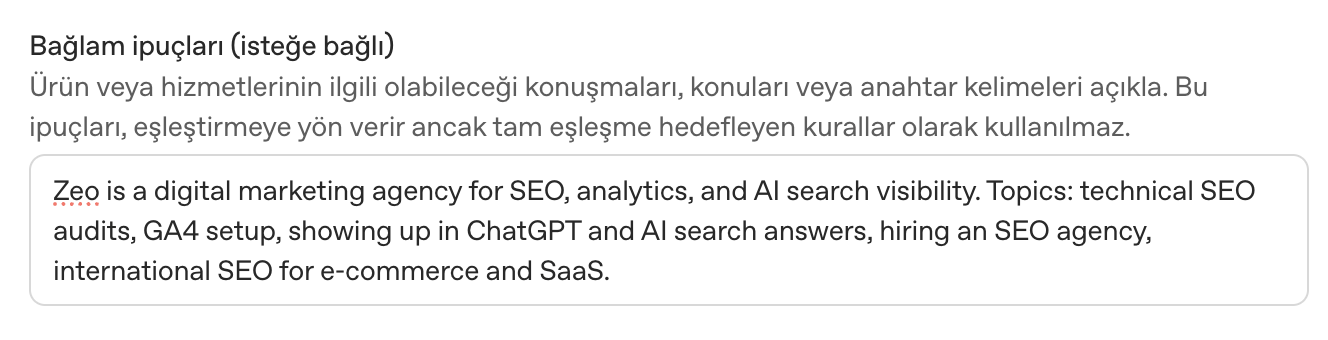 OpenAI Ads context hints field
The description below the field is clear: "These hints guide matching but aren't used as exact-match targeting rules." So you're writing a prompt, and the model interprets it. There's something we've learned in software: if a field exists, it's being used somewhere. That's why I'd recommend not leaving this blank, and describing the topics a user might actually be talking about in ChatGPT rather than dumping a pile of keywords. Also, don't forget to write it in the target country's language.
The text we entered for our test campaign was:
Zeo is a digital marketing agency for SEO, analytics, and AI search visibility. Topics: technical SEO audits, GA4 setup, showing up in ChatGPT and AI search answers, hiring an SEO agency, international SEO for e-commerce and SaaS.
For an e-commerce brand, you might write something like:
Online store selling ergonomic office chairs and standing desks. Relevant when users ask about back pain from sitting, home office setup, best chair for long work hours, or comparing standing desk brands.
In both cases, I did the same thing: instead of describing the product, I wrote what the user might actually ask ChatGPT when they need it. Think questions, not keywords.
Creating the Ad
You enter the ad name and URL once again (even if you already entered them at the ad group level, it asks again). Then come the headline and description:
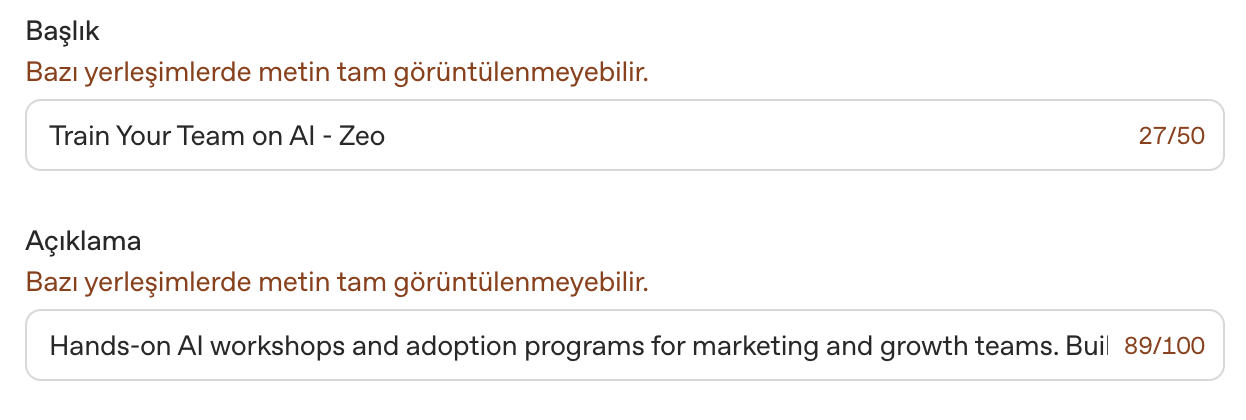 OpenAI Ads headline and description character limit warning
The headline is capped at 50 characters, the description at 100. But these are upper limits, not the real limits. I tested it by counting: at 24 characters in the headline there's no warning, at 25 it shows "text may not display fully in some placements." In the description, the preview shows two lines and cuts off with an ellipsis after about 75 characters. OpenAI's own recommendation is even shorter: 16 to 24 characters for the headline, 32 to 48 for the description. On phones, the cutoff happens even earlier. Put your message right at the front.
Here's how the preview looks:
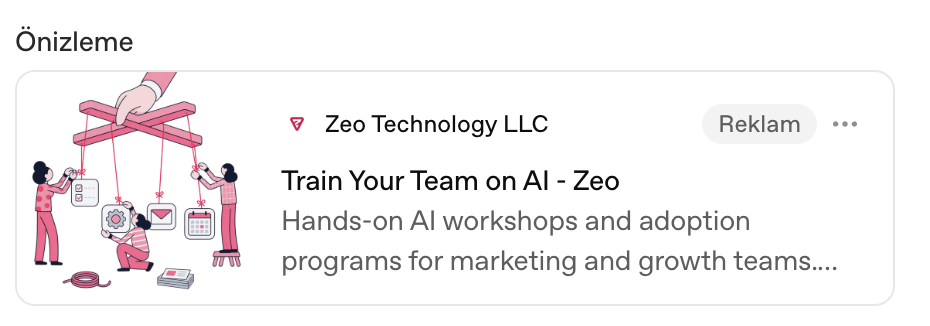 ChatGPT ad preview
The panel pulls the ad image from your site automatically and uses a square crop. Since the image it pulled from our site was an SVG, it got stuck at this step. When I switched to uploading manually, it asked for a 256x256 pixel PNG or JPEG. If your site's image is an SVG, prepare a square PNG at that size ahead of time, so you're not hunting for a file while setting up the campaign. The preview shows the account name, logo, and an "Ad" badge, giving you a sense of how the card will look inside ChatGPT.
By the way, the September 16 announcement also mentions an AI-assisted ad creation feature: it looks at your landing page and campaign objective and generates a suggested text and image, which you then edit and add. Since it's still in testing, I haven't seen it in our panel yet - I'll try it once it's rolled out more broadly.
Clicking "Review" takes you to the billing step. A campaign can't go live without adding a card - this step is mandatory.
How Does the Ad Look Inside ChatGPT?
Let's step out of the panel and look at the user side. The ad doesn't get inserted into the model's response. According to OpenAI's help center, it appears as a separate card below the end of the response, labeled as sponsored, and visually separated from the answer. The ad system runs separately from the chat model - the advertiser has no way to shape the response itself. The card you see in the panel preview is the same card the user sees.
Who sees it matters too: ads can only be shown to users on ChatGPT's Free and Go plans. There are no ads on Plus, Pro, Business, Enterprise, or Edu accounts, and none are shown to accounts identified as under 18. So if your target audience is paid-plan professionals, know upfront that this ad won't reach them.
Which ad shows up is decided jointly by the conversation's context, the landing page, the headline, the description text, and the context hints you entered. Your landing page needs to be about the same topic as the ad - driving traffic to an unrelated page is harder to get away with here than on Google. One more note for anyone targeting Europe: personalized ads aren't offered in the EEA and Switzerland to start with - there, matching relies solely on the context of the current conversation.
There's also a trial we haven't been able to see yet: Sponsored Agents. It's being tested with select advertisers in the US - after a user clicks an ad, they can start a separate, labeled chat with a business-backed AI agent and ask questions. One of the first pilot partners is the home services platform Angi. Honestly, the idea of the post-click experience turning into a chat instead of a landing page excites me - if this test comes to Türkiye, it'll be one of the first things I try.
Audiences
Under the ad group's advanced settings there's an audience selection option, but when you click "Create audience," the only option is uploading a customer list. You can upload email addresses, phone numbers, or raw Android advertising IDs via CSV. I would have loved it if it provided a sample CSV template - it doesn't. There's no interest or behavior targeting yet. On the location side, you can go below country level: city, region, and postal code can be selected, though product feed campaigns stay at the country level. This will be the biggest change for teams coming from Meta, the burden of targeting is largely shifted onto the context hints and the model's interpretation.
Ad Policies
Before setting up a campaign, make sure to read OpenAI's ad policies - they're stricter than Google's and Meta's, and get updated almost every month. The page published in March was already on its sixth revision by the time I wrote this. In short, there are three layers. On the placement side, ads aren't shown at all in conversations about categories like political content, weapons, or gambling, or in sensitive conversations like mental health. On the content side, adult content, gambling, alcohol and tobacco, political ads, dating apps, and wellness products making unsupported health claims are banned; financial services and health are only allowed in the US and subject to approval, and are generally banned outside the US. This point matters for anyone in Türkiye targeting international markets: a Turkish bank or clinic can't currently advertise on this platform.
An interesting clause was also added in the September revision: OpenAI clarified its right to reject ads that conflict with its own commercial interests or competitive position. The example that made the press was the removal of Adobe Firefly ads because they compete with OpenAI's own image generation features. Brands marketing AI products need to be aware of this.
Lastly, on the review side: ad text, image, and landing page are reviewed together, with end-to-end consistency as the standard. Prepare your landing page as carefully as the ad itself, because it's part of the review too.
ChatGPT Ads Conversion Tracking: Pixel, Events, and CAPI
You start by creating a data source under the Tools menu:
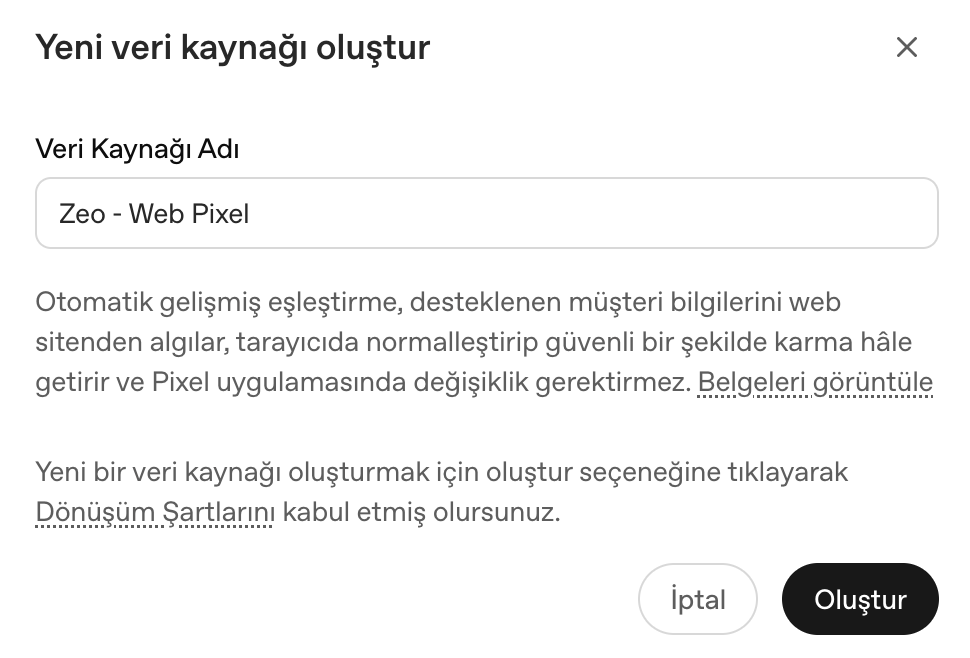 OpenAI Ads creating a new data source and advanced matching
The description here matters: "Automatic advanced matching" detects customer information on your site, normalizes and hashes it in the browser, and requires no changes to the pixel code. Familiar territory for anyone who knows Meta's Advanced Matching. Clicking "Create" is treated as accepting the Conversion Terms.
The next screen gives you the Pixel ID, the setup code, and a sample event call:
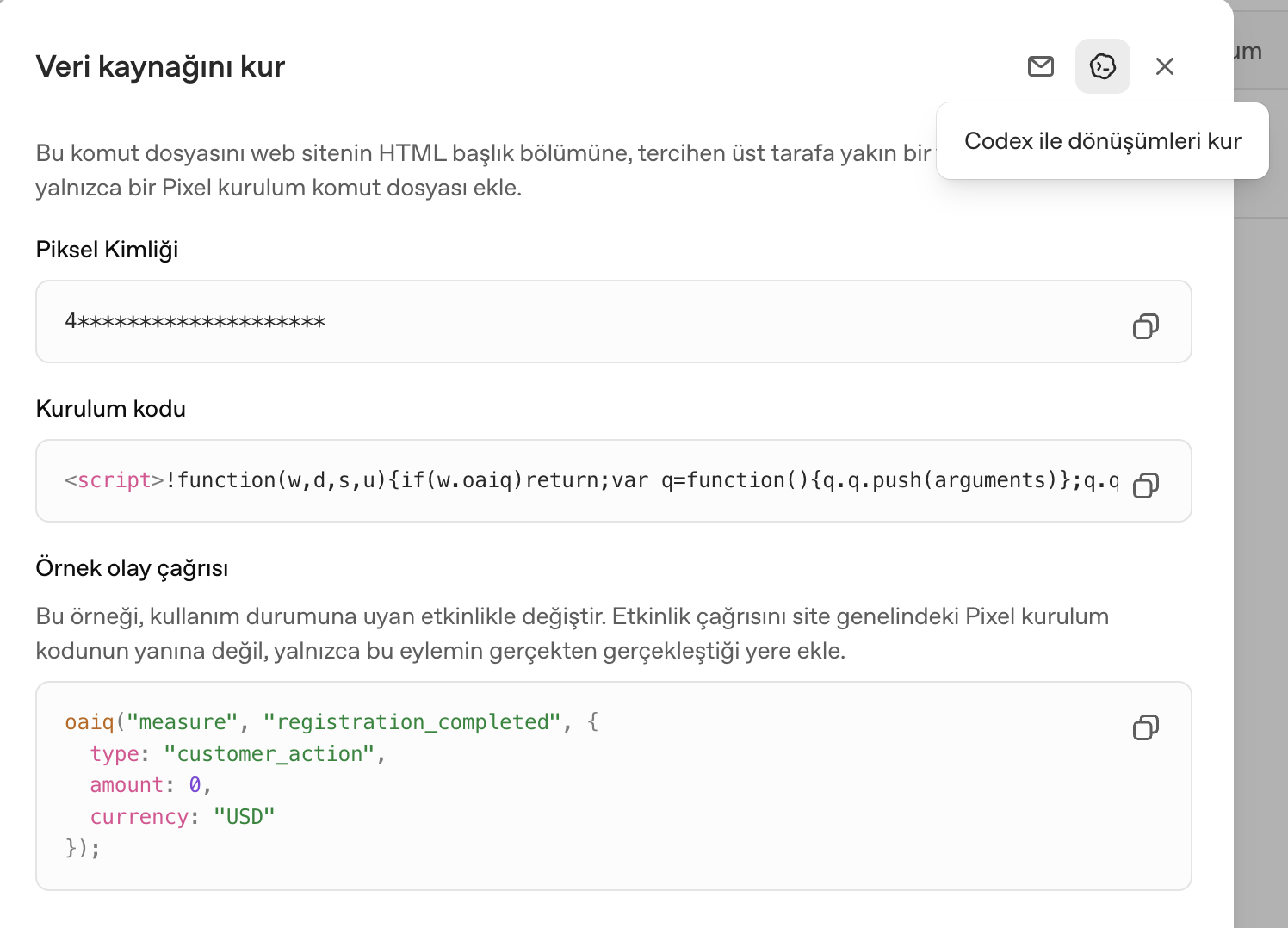 OpenAI Ads pixel setup code and Codex icon
The setup code looks like this (replace the Pixel ID with your own value):
<script>
!function(w,d,s,u){if(w.oaiq)return;var q=function(){q.q.push(arguments)};q.q=[];w.oaiq=q;
var j=d.createElement(s);j.async=1;j.src=u;var f=d.getElementsByTagName(s)[0];
f.parentNode.insertBefore(j,f)}(window,document,"script","https://bzrcdn.openai.com/sdk/oaiq.min.js");
oaiq("init",{pixelId:"PIXEL_ID",debug:true});
</script>
The panel sets two rules. The script should be added inside <head>, as high up as possible, and there should be only one pixel setup script on the site. Event calls, on the other hand, should be placed on the page where the action actually happens, not in site-wide code. Don't forget to remove the debug:true parameter before going live.
Standard Events
When creating a custom conversion, you select the data source, the underlying event, and a conversion name:
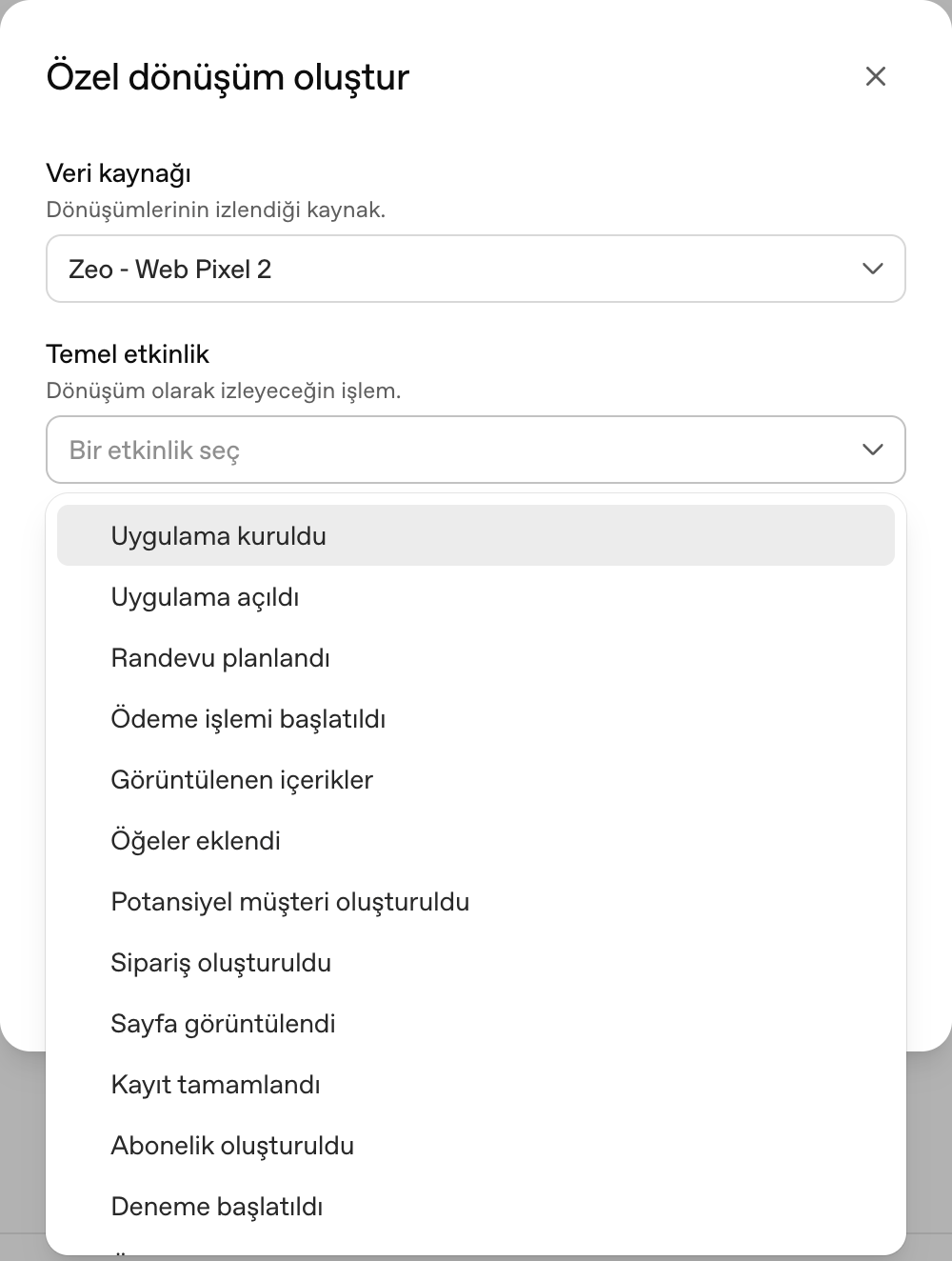 OpenAI Ads custom conversion creation and base event list
Here are the technical names behind the event labels you see in the panel:
|
Panel name |
Event name |
Data type |
|
Page viewed |
page_viewed |
contents |
|
Content viewed |
contents_viewed |
contents |
|
Item added |
items_added |
contents |
|
Checkout started |
checkout_started |
contents |
|
Order created |
order_created |
contents |
|
Lead created |
lead_created |
customer_action |
|
Registration completed |
registration_completed |
customer_action |
|
Appointment scheduled |
appointment_scheduled |
customer_action |
|
Subscription created |
subscription_created |
plan_enrollment |
|
Trial started |
trial_started |
plan_enrollment |
|
Custom event |
custom |
custom |
Each event's type field determines the data shape: content and order events use contents, lead and registration events use customer_action, and subscription and trial events use plan_enrollment. For custom events, custom_event_name is required - lowercase, up to 64 characters, letters, numbers, underscores, and hyphens only.
Watch out when entering amounts: the amount field wants a whole number in minor units, i.e., cents or kuruş. For a $129.99 order, you'd enter 12999. If amount is present, currency is required too.
A sample order event:
oaiq("measure", "order_created", {
type: "contents",
amount: 12999,
currency: "USD",
contents: [{ id: "sku_123", name: "Starter Bundle", content_type: "product", quantity: 1 }]
}, {
event_id: "order_98765"
});
The panel also lists "App installed" and "App opened" events. These aren't among the ten standard events in the documentation, and are probably new additions for app campaigns — I'll add their technical names once I've confirmed them.
Attribution Window
When I first reviewed this, the "post-click attribution window" on the custom conversion screen was fixed at 30 days; the field was greyed out, and it said "support coming soon" for 7 and 14 days. That "soon" took two weeks. Now, when customizing reporting columns, you can choose a 7-, 14-, or 30-day click window and a 0- or 1-day view window; the selection applies to all conversion columns. For anyone reporting side-by-side with Google and Meta, not being able to align the windows was a real gap. It's closed now.
Event Quality Score
A new Event Quality Score has also been added under the Conversions section in Tools: it gives Pixel and Conversions API data sources a setup score from 1 to 10, evaluates the coverage of customer data, and offers recommendations. It's the equivalent of Meta's Event Match Quality. It wasn't there yet when I first reviewed this. Once I finish the setup, this is the first thing I'll check.
Conversions API
After creating a conversion, the "conversion event code" screen that opens has two tabs: Pixel and Conversions API:
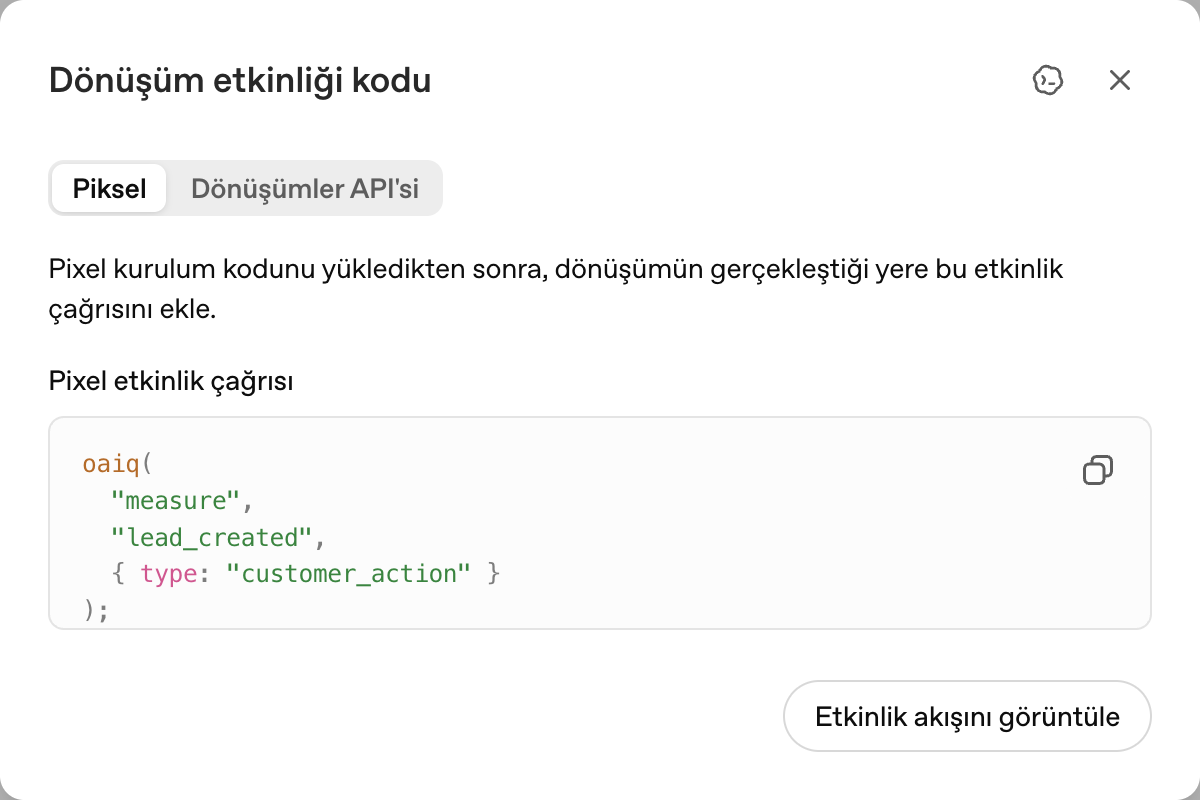 OpenAI Ads conversion event code, Pixel and Conversions API tabs
You can see the event name is auto-derived from the conversion name; I entered "Lead Created" and it produced lead_created. For a lead, the call comes with just { type: "customer_action" }.
On the CAPI side, events are sent via POST to https://bzr.openai.com/v1/events with a Bearer token. Every event needs a unique id, a type, and a timestamp_ms in milliseconds; for action_source you specify web, mobile_app, offline, physical_store, phone_call, email, or other. You can send up to 1,000 events in a single request. For deduplication, the event_id from the browser and the id from the server need to be the same value; in that case, OpenAI counts the two events as a single conversion. I'd recommend using pixel and CAPI together to guard against ad blockers and consent loss; since the new oCPM model also factors post-view conversions into optimization, signal quality now directly affects delivery.
Setup with Google Tag Manager
There's no official GTM template yet. You can add the setup code as a Custom HTML tag on an All Pages trigger, and add the event calls as separate Custom HTML tags tied to their relevant triggers. Alternatively, there's an open-source GTM template published by TensorOps under the Apache-2.0 license; it supports all ten standard events and also handles CAPI deduplication via event_id.
Setting Up Conversions with Codex
This was one of the features I liked most in the panel. Clicking the icon at the top right of the pixel setup screen opens a three-step flow:
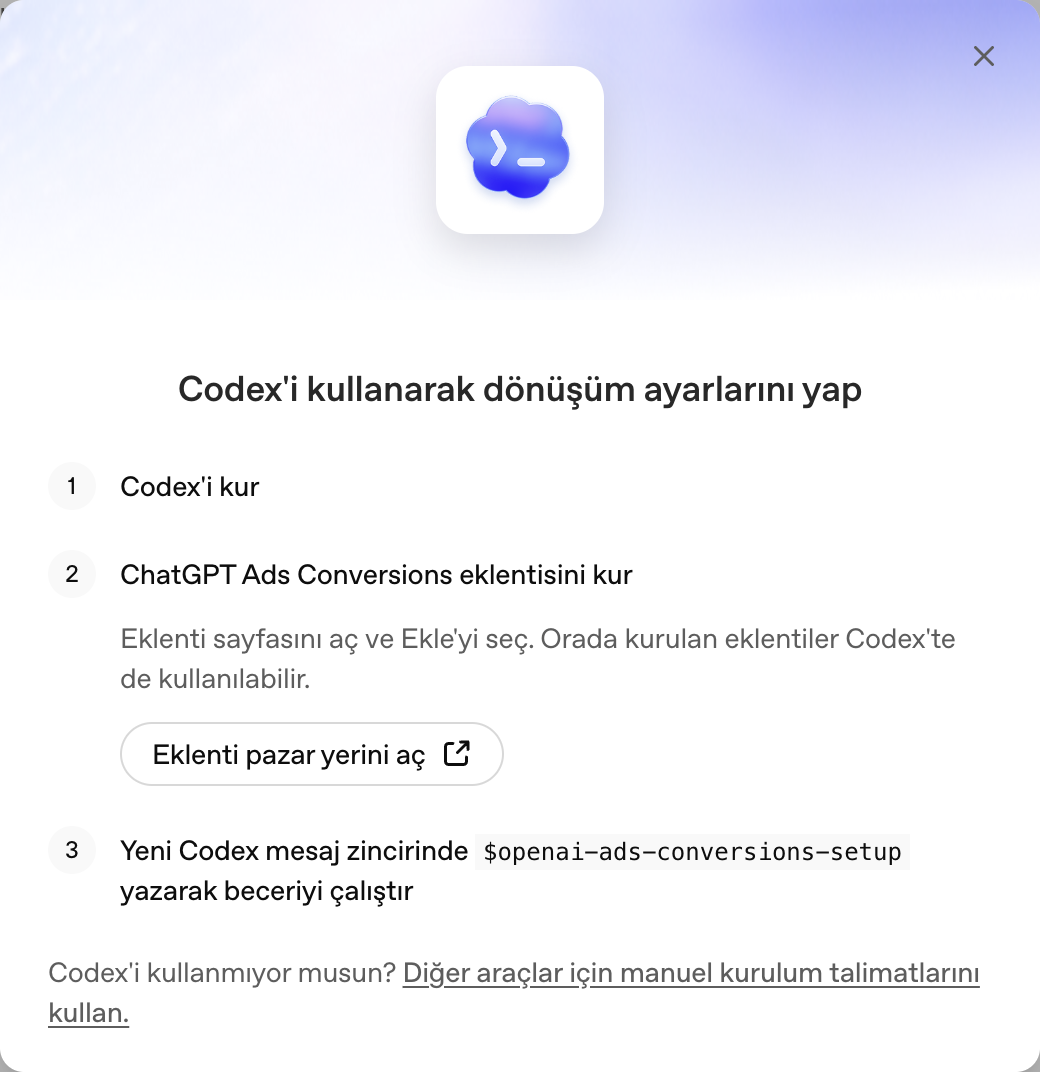 Steps for setting up OpenAI Ads conversions with Codex
First, you install Codex, then you add the ChatGPT Ads Conversions plugin from the marketplace. Plugins you add in ChatGPT also become available in Codex. Finally, typing $openai-ads-conversions-setup in a new Codex message thread runs the skill and adds pixel and, optionally, CAPI tracking to your repository.
There's a path for people who don't use Codex too. In the openai/plugins repository on GitHub, there's a plugins/openai-ads-conversions/skills/openai-ads-conversions-setup/ folder; you can hand the SKILL.md file in there to your own agent tool as instructions, keep the references/ folder on hand, and run the validation scripts under scripts/ locally. The README has a fair warning: review the generated code for privacy, consent, and security before deploying it, and never commit your CAPI keys.
Product Feeds, Shopify, and HubSpot
You can create a product feed from the Feeds section under Tools. Source options include a hosted URL (supports username/password protection), SFTP, or direct CSV/TXT upload. If you have an XML feed, you can connect it via URL, have it validated, and set an import schedule; that keeps price, stock, and metadata up to date.
As an interesting experiment, I created a feed for our services. So this format doesn't seem limited to e-commerce — it looks usable for service businesses too. I haven't yet tried how the ad creation steps change for a product feed campaign — I'll leave that for a separate article.
Two integrations were also announced on September 16. On the Shopify side, OpenAI's own free ChatGPT Ads app is currently open to sellers in the US. The product catalog connects via Shopify Catalog, and sellers can set up conversion measurement and manage campaigns without leaving Shopify. OpenAI says the app will become available in other markets where ChatGPT Ads is live starting September 23. On the HubSpot side, businesses can connect their ChatGPT Ads account to HubSpot to create ads, track performance alongside other ad channels, and follow incoming leads from within HubSpot. The integration is still listed as beta on HubSpot. For B2B teams whose CRM is HubSpot, having leads flow into one place will save real time.
Reporting
The overview screen has campaign, ad group, and ad tabs, along with a calendar and filters. You can add multiple filters and segment by device, country, or platform; the platform breakdown now comes with the five-way split I mentioned above. Clicking "Edit columns" gives you base fields (campaign ID, type, budget), delivery metrics (impressions, clicks, spend, CTR, CPC, CPM), and conversion metrics (conversions, CPA, ROAS, CVR); you now also choose attribution windows from here. Export works as CSV, and there's a bulk upload option too — meaning you can edit the file you exported and re-upload it. Change history is kept in a separate tab as well.
The campaign list has the usual actions: cloning, pausing, and setting a start date. If you haven't linked a conversion event to a campaign, you'll see a "no conversion event" warning in the list — don't skip this step.
Where It Differs From Google and Meta
After going through the whole panel, three things stuck with me. First, context hints: targeting has moved away from keywords into free text and the model's interpretation, and there's no interest-based targeting at all. Second, the maturity of the measurement side: pixel, CAPI, advanced matching, and the Codex plugin all seem designed together from day one — more than I'd expect from such a new panel. Third, the possibility of the post-click experience turning into a chat. If the Sponsored Agents test sticks, we'll be rethinking what a landing page even means.
There are gaps too, of course: you can't send a direct admin invite, there's no sample CSV template, and finance and health ads are closed outside the US.
Given that accounts can now be opened from Türkiye and Türkiye can be targeted, there's no reason left to wait. I'll update this article as results from our Türkiye campaign come in. If you try it, I'd love to hear what you observe. Wishing everyone plenty of conversions.
Frequently Asked Questions
How do you advertise on ChatGPT? You open an account in OpenAI Ads Manager and complete business verification; you set the campaign objective, countries, and budget, write context hints at the ad group level, add ad copy and an image, and go live after adding your card details. Conversion measurement requires setting up either the pixel or the Conversions API — all the steps are above with screenshots.
Is ChatGPT Ads active in Türkiye? Yes. As of September 16, 2026, businesses registered in Türkiye can open an advertiser account and target Türkiye in their campaigns. Our campaign targeting only Türkiye is live and getting impressions.
How much does ChatGPT advertising cost? For US dollars, the minimum daily budget is $25; for manual bidding, OpenAI's suggested starting CPC range is $3 to $5. Minimum budgets vary by currency, and OpenAI now recommends impression-based conversion optimization (oCPM).
Do ChatGPT ads affect organic responses? No. The ad system runs separately from the chat model; the ad appears as a separate, labeled card below the response, and the advertiser has no way to shape the response. Ads are only shown to users on the Free and Go plans.
As Zeo, we continue running pixel, CAPI, and Codex setups on OpenAI Ads Manager, testing context hints, and piloting campaigns in Türkiye and international markets. If you'd like to test ChatGPT ads in Türkiye or abroad, or want to get your measurement infrastructure ready ahead of time, feel free to reach out to us.